Laptop Screen Types Explained: LCD, IPS vs OLED
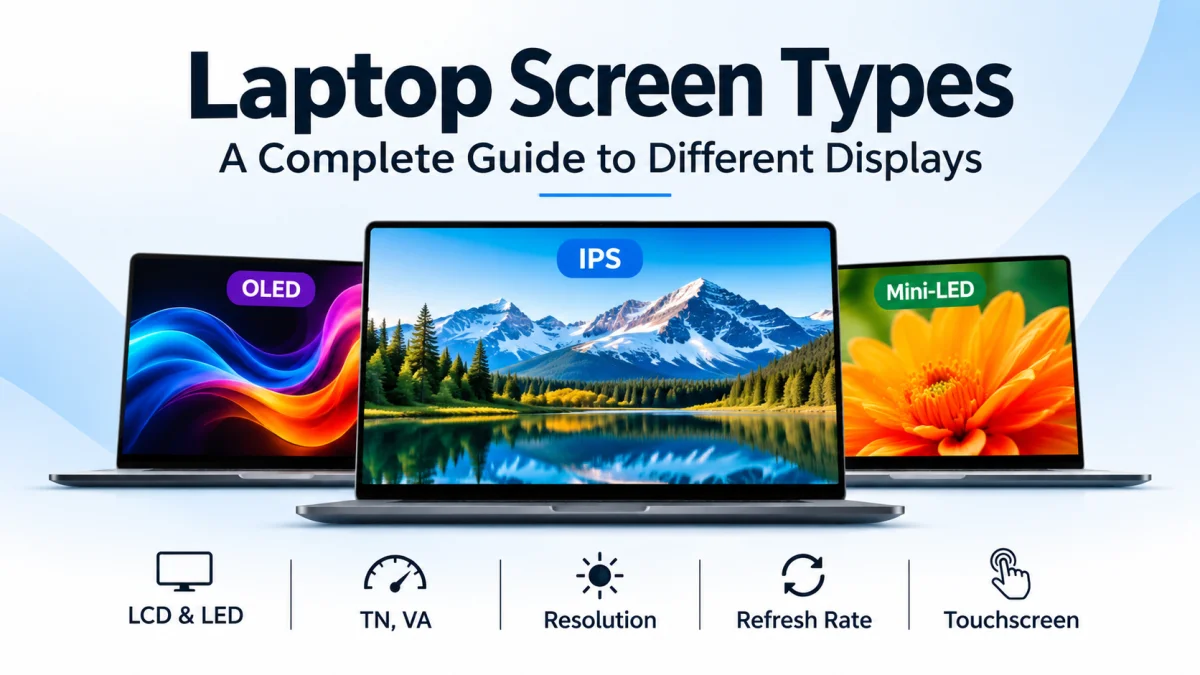
Laptop screens come in different types, and each offers a different balance of image quality, color accuracy, brightness, contrast, and power consumption. Whether you are buying a laptop for work, school, gaming, graphic design, or everyday browsing, understanding these differences can help you choose the right display.
The most common laptop displays use LCD technology, including IPS and TN panels, while premium laptops may feature OLED or Mini-LED displays. You will also find differences in screen resolution, refresh rate, surface finish, size, and touchscreen support.
In this guide, you will learn about the different types of laptop screens, how they work, how they compare, and which display features matter most for your needs.
What Are the Different Types of Laptop Screens?
Laptop screens can be classified by their display technology, panel type, resolution, surface finish, and touch capabilities. These categories describe different aspects of a display, so they should not be treated as mutually exclusive types.
For example, a laptop can have an LED-backlit IPS LCD with Full HD resolution, a matte finish, and a 60Hz refresh rate. Another laptop might have an OLED display with a 2.8K resolution, a glossy finish, and a 120Hz refresh rate.
Here are the main laptop screen technologies and panel types you should know:
LCD: Uses liquid crystals and a backlight to create images.
LED-backlit LCD: An LCD display that uses LEDs as its backlight.
TN: A type of LCD panel traditionally associated with fast response times and narrower viewing angles.
IPS: An LCD panel type known for consistent colors and wide viewing angles.
VA: An LCD panel type known for relatively high contrast.
OLED: Uses self-emissive pixels that produce their own light.
Mini-LED: Uses a backlight with many small LEDs and local dimming zones, typically behind an LCD panel.
AMOLED: A form of OLED that uses an active-matrix driving system.
Other important display features include screen resolution, refresh rate, brightness, color coverage, and whether the screen supports touch input.
1. LCD (Liquid Crystal Display)
LCD stands for Liquid Crystal Display. It is a widely used display technology in laptops, monitors, and other electronic devices.
An LCD panel uses liquid crystals to control how light passes through individual pixels. A separate backlight illuminates the display, allowing you to see text, images, videos, and other content.
Most modern laptop LCDs use LED backlighting rather than older CCFL backlighting.
Advantages of LCD Screens
Available across a wide range of laptop prices.
Can offer good brightness and image clarity.
Generally available with lower power consumption than many older display technologies.
Available in different panel types, resolutions, and sizes.
No typical OLED-style permanent burn-in concern.
Disadvantages of LCD Screens
Black areas may appear gray because some backlight can pass through the panel.
Contrast and viewing angles depend on the specific panel technology.
Image quality can vary significantly between inexpensive and premium LCDs.
LCD is not a single level of quality. A basic TN LCD and a high-quality IPS LCD can provide noticeably different viewing experiences.
2. LED Laptop Screens
The term "LED screen" is commonly used in laptop specifications, but it usually refers to an LCD panel with an LED backlight.
In a typical LED-backlit LCD, the LEDs produce light behind or along the edges of the LCD panel. The liquid crystals control how much of that light passes through each pixel.
Advantages of LED-Backlit LCD Displays
Efficient backlighting in many implementations.
Good brightness for everyday use.
Available in affordable and premium laptops.
Can provide good image quality when paired with a capable panel.
Disadvantages of LED-Backlit LCD Displays
Contrast depends on the LCD panel and backlight design.
Light leakage can affect black levels.
The term "LED" alone does not tell you whether a display has good color accuracy or viewing angles.
LCD vs. LED: What Is the Difference?
LCD describes the display technology, while LED usually describes the backlight used in a modern LCD. Therefore, an LED-backlit laptop display is generally an LCD, not a completely separate display technology.
3. TN (Twisted Nematic) Panels
TN stands for Twisted Nematic. It is an LCD panel technology that has traditionally been used in budget laptops and displays that prioritize fast pixel response.
TN panels can be suitable for basic computing, but their viewing angles and color consistency are often weaker than those of good IPS displays.
Advantages of TN Panels
Can offer fast response times.
Often found in lower-cost displays.
Can be suitable for users who prioritize price over color quality.
Disadvantages of TN Panels
Typically narrower viewing angles than IPS.
Colors and brightness may shift when viewed from different angles.
Some panels have limited color reproduction.
Image quality varies by model and generation.
Who Should Choose a TN Display?
A TN display may be acceptable for basic office tasks, browsing, and budget computing. However, if you regularly edit photos, create visual content, or watch movies with other people, an IPS panel is often a more versatile choice.
TN should not automatically be considered the fastest option for gaming. Modern IPS and OLED displays can also offer very fast response times, so compare the specifications of the actual laptop.
4. IPS (In-Plane Switching) Panels
IPS stands for In-Plane Switching. It is a type of LCD panel designed to provide consistent colors and wide viewing angles.
IPS displays are common in business laptops, student laptops, creative workstations, and many gaming laptops.
Advantages of IPS Displays
Wide viewing angles.
Generally consistent color reproduction.
Good image quality for everyday work.
Available in Full HD, QHD, 4K, and other resolutions.
Available with standard and high refresh rates.
Disadvantages of IPS Displays
Contrast is often lower than VA and OLED displays.
Some IPS panels may show IPS glow or backlight bleed.
Color accuracy varies by panel.
Premium IPS displays can cost more than basic LCD alternatives.
Is IPS Good for Graphic Design?
IPS can be an excellent choice for graphic design, photo editing, and other color-sensitive work. However, the IPS label alone does not guarantee professional color accuracy.
For creative work, check the display's sRGB or DCI-P3 color coverage, factory calibration, brightness, resolution, and color consistency.
A laptop with a well-calibrated IPS panel can be more suitable for accurate design work than a low-quality display marketed with a more impressive-sounding technology name.
5. VA (Vertical Alignment) Panels
VA stands for Vertical Alignment. It is another type of LCD panel that generally provides higher native contrast than conventional IPS and TN panels.
VA technology is common in desktop monitors and televisions. It is less common in laptop displays than IPS, so buyers should verify the actual specifications rather than assume a laptop uses VA.
Advantages of VA Displays
Relatively high contrast.
Can produce deeper-looking blacks than many standard LCD panels.
Can provide an enjoyable movie-watching experience.
Useful for content viewed in darker environments.
Disadvantages of VA Displays
Viewing angles and color consistency depend on the panel.
Some VA panels exhibit dark-level smearing during motion.
Laptop availability is more limited than for common IPS panels.
Is VA Better Than IPS?
Neither technology is universally better.
VA is attractive when contrast is a priority. IPS is often the more practical all-around option when wide viewing angles, color consistency, and general productivity matter most.
6. OLED (Organic Light-Emitting Diode) Displays
OLED stands for Organic Light-Emitting Diode. Unlike LCD technology, OLED does not need a separate backlight. Each pixel generates its own light and can switch off individually.
This allows OLED displays to produce very deep blacks and extremely high contrast. OLED laptops are popular among users who value image quality, entertainment, and premium display performance.
Advantages of OLED Laptop Screens
True black pixels and very high contrast.
Vivid colors when the panel is configured for a wide color gamut.
Wide viewing angles.
Very fast pixel response times.
Excellent potential for HDR content, depending on the panel's specifications.
Disadvantages of OLED Laptop Screens
Some models are more expensive than comparable LCD laptops.
Power consumption varies with displayed content and brightness.
Long-term burn-in is possible when static content repeatedly affects the same pixels.
Glossy surfaces on some models can produce reflections.
Brightness performance varies by model and by the size of the bright area on the screen.
Is OLED Worth It for a Laptop?
OLED is worth considering if you watch a lot of movies, edit photos and videos, or want strong contrast and rich image quality.
However, it is not automatically the best choice for everyone. A well-designed IPS laptop may offer better value, sustained full-screen brightness, or a more suitable matte finish for a particular work environment.
Modern OLED laptops may include features designed to reduce burn-in risk, but no preventive feature completely eliminates that risk.
7. AMOLED Laptop Displays
AMOLED stands for Active-Matrix Organic Light-Emitting Diode. It is a type of OLED display that uses an active-matrix system to control individual pixels.
AMOLED is often associated with smartphones, but OLED technology is also used in some laptops and other computing devices.
Advantages of AMOLED Displays
Deep blacks and high contrast.
Strong color performance.
Fast pixel response.
Wide viewing angles.
Disadvantages of AMOLED Displays
Burn-in remains a potential long-term consideration.
Display cost and power consumption depend on the implementation.
Screen brightness, resolution, and color accuracy vary by model.
AMOLED and OLED are closely related terms, not two completely unrelated display technologies. When comparing laptops, focus on the actual specifications rather than the name alone.
8. Mini-LED Laptop Displays
Mini-LED is a backlighting technology used in certain LCD displays. It employs many small LEDs arranged into local dimming zones to control the brightness of different parts of the screen.
Unlike OLED, a typical Mini-LED display does not control light independently at every pixel. Instead, it dims or brightens groups of backlight LEDs behind an LCD panel.
Advantages of Mini-LED Displays
High peak brightness on suitable models.
Strong HDR potential.
Better local contrast than many conventional LCD backlights.
Suitable for bright environments and HDR content.
Disadvantages of Mini-LED Displays
Can be expensive.
May exhibit blooming or halos around bright objects on dark backgrounds.
Results depend on the number and quality of dimming zones.
The underlying LCD panel still affects viewing angles and response time.
Mini-LED vs. OLED
Mini-LED can be a strong option when high brightness and HDR performance are important. OLED has an advantage in pixel-level black control because each pixel can switch off independently.
Neither is automatically superior in every situation. Compare brightness, HDR performance, reflections, color coverage, and the laptop's intended use.
IPS vs. TN vs. VA vs. OLED vs. Mini-LED
The following table summarizes the typical strengths and limitations of these technologies. Actual performance varies by panel and laptop model.
Quick takeaway: IPS is a versatile choice for most users. OLED is attractive for deep blacks and fast response, while Mini-LED can deliver high brightness and strong HDR. TN and VA have their own strengths, but actual specifications matter more than a label alone.
Different Types of Laptop Screen Resolutions
Screen resolution refers to the number of pixels a display contains, expressed as horizontal pixels by vertical pixels. Higher resolution generally allows more detail, although screen size, pixel density, and software scaling also affect how sharp the display looks.
HD (1366 × 768)
HD at 1366 × 768 is found in some older and entry-level laptops.
It can be sufficient for basic tasks such as typing, email, and simple browsing. However, it provides less workspace and detail than Full HD, especially on larger screens.
Full HD (1920 × 1080)
Full HD, also called FHD or 1080p, is a practical resolution for many laptops.
It provides clear text, useful workspace, and a good balance between image quality and power consumption. For everyday office work, studying, web browsing, and streaming, Full HD is often sufficient.
Full HD+ (1920 × 1200)
Full HD+ or WUXGA commonly refers to a 1920 × 1200 display, often using a 16:10 aspect ratio.
Compared with 1920 × 1080, it provides additional vertical pixels. This can be helpful for reading documents, coding, spreadsheets, and multitasking.
QHD (2560 × 1440) and QHD+ (2560 × 1600)
QHD has a resolution of 2560 × 1440. QHD+ is often used for laptop displays with resolutions such as 2560 × 1600.
These resolutions provide more detail and workspace than Full HD. They can be useful for creative work, gaming, and multitasking.
The exact label depends on the resolution and aspect ratio, so check the pixel dimensions when comparing laptops.
2.8K and 3K Displays
Premium laptops may feature resolutions such as 2880 × 1800 or other configurations marketed as 2.8K or 3K.
These displays can provide very sharp text and detailed images. They are often paired with OLED technology, but resolution and panel technology are separate features.
4K UHD (3840 × 2160)
4K UHD provides four times as many pixels as Full HD.
It is useful for detailed image work, compatible high-resolution video, and users who value a very sharp display. However, it may increase power consumption and may require software scaling to keep text comfortably readable.
HD vs. Full HD vs. QHD vs. 4K
For most everyday laptop users, Full HD or Full HD+ is a sensible starting point. Higher resolutions are worth considering when sharper detail or extra workspace will benefit your work.
Laptop Screen Types Based on Surface Finish
A laptop screen's surface finish affects how it handles reflections. The two common categories are matte and glossy.
Matte Laptop Screens
Matte displays use a surface treatment designed to diffuse reflections.
Advantages:
Can reduce distracting reflections.
Often practical for offices and brightly lit rooms.
Useful for users who frequently work with documents and spreadsheets.
Disadvantages:
Some matte coatings can make the image appear slightly less crisp or vivid.
Reflection handling varies by coating and lighting conditions.
Glossy Laptop Screens
Glossy displays have a smoother surface that can make colors and contrast appear vivid, depending on the panel.
Advantages:
Can produce a clear, vibrant-looking image.
Common on touchscreen and premium multimedia laptops.
Suitable for many indoor entertainment environments.
Disadvantages:
Reflections can be distracting.
Bright lights and windows may reduce visibility.
Some glossy touchscreens can be harder to use in direct sunlight.
Matte vs. Glossy: Which Is Better?
Choose matte if you often work under bright office lighting or want fewer distracting reflections. Consider glossy if you mainly use your laptop indoors and prefer its appearance.
Neither finish guarantees better color accuracy. The panel's specifications and the lighting around you also matter.
Touchscreen vs. Non-Touchscreen Laptop Displays
Laptop displays can also be classified by whether they support touch input.
Non-Touchscreen Displays
A non-touchscreen display is operated using the keyboard, touchpad, mouse, or another supported input device.
Benefits include a straightforward user experience and, in some models, lower cost or fewer display layers. Actual battery life depends on the complete laptop configuration.
Touchscreen Displays
A touchscreen allows you to interact directly with the display using your fingers. Some models also support a compatible active pen or stylus.
Touchscreens can be useful for drawing, annotating documents, navigating presentations, and using convertible laptops.
However, touchscreen support does not automatically mean stylus support. Check the manufacturer's specifications for pen compatibility, pressure sensitivity, and included accessories.
2-in-1 Convertible Displays
A 2-in-1 laptop can switch between laptop and other positions, such as tablet mode, depending on its hinge design.
These laptops are useful for people who want keyboard productivity alongside direct touch interaction. A convertible design may add weight or cost, so consider whether you will actually use the flexibility.
Laptop Screen Sizes and Aspect Ratios
Laptop screen size is measured diagonally, usually in inches. Screen size affects portability and available workspace, but it does not tell you the display's resolution or image quality.
Common Laptop Screen Sizes
11–12 inches: Compact devices and some ultraportable laptops.
13–14 inches: Portable laptops for students, professionals, and frequent travelers.
15–16 inches: A balance between screen space and portability.
17–18 inches: Larger laptops for desktop-style use, gaming, and demanding workflows.
The actual dimensions and weight of a laptop also depend on its bezels, chassis, and design.
Common Laptop Screen Aspect Ratios
An aspect ratio describes the proportional relationship between a display's width and height.
16:9: Common for widescreen video and many older laptops.
16:10: Provides more vertical space than 16:9 at a comparable width.
3:2: Offers additional vertical workspace and is useful for documents and web pages.
4:3: An older format that is now uncommon in mainstream laptops.
If you regularly work with documents, code, or long web pages, a 16:10 or 3:2 display may be more convenient than a 16:9 display.
Laptop Display Refresh Rates Explained
Refresh rate is the number of times a display can update its image per second, measured in hertz (Hz).
A 60Hz display can refresh up to 60 times per second, while a 120Hz display can refresh up to 120 times per second. Higher refresh rates can make motion and scrolling look smoother when the laptop and content support them.
60Hz Displays
A 60Hz screen is suitable for everyday productivity, web browsing, video streaming, and many non-competitive games.
90Hz and 120Hz Displays
These refresh rates can provide smoother scrolling, animations, and gameplay. They are increasingly relevant in premium laptops.
144Hz, 165Hz, and 240Hz Displays
Higher refresh rates are especially useful for competitive gaming, provided the laptop's hardware can deliver sufficiently high frame rates.
Refresh Rate vs. Response Time
Refresh rate and response time are different specifications.
Refresh rate measures how often the display can update. Response time measures how quickly pixels change between states. Both can affect motion clarity, but neither specification alone tells the whole story.
For office work, 60Hz may be enough. Gamers may benefit from 120Hz or higher, depending on their games and hardware.
Important Laptop Display Specifications to Check
When comparing laptop screens, look beyond the technology name. These specifications can make a major difference to the viewing experience.
Brightness
Brightness is commonly measured in nits, or candelas per square meter.
A brighter screen can be easier to view in a well-lit room, although reflections and contrast also matter. Around 300 nits can be a useful starting point for many indoor uses, but the right level depends on the environment.
Contrast Ratio
Contrast ratio describes the difference between the brightest white and darkest black a display can produce under specified conditions.
Higher contrast can make images look more dimensional. OLED displays can turn individual pixels off, while LCD contrast depends on the panel and backlight.
Color Gamut
Color gamut describes the range of colors a display can reproduce.
Common measurements include:
sRGB: Widely used for web content and general digital work.
DCI-P3: A wider color space used in cinema and many modern creative displays.
For photo editing, graphic design, and color-sensitive work, check the actual color coverage and calibration quality.
Pixel Density (PPI)
Pixels per inch, or PPI, measures how densely pixels are packed on the screen.
A higher PPI generally produces sharper text and images at the same viewing distance. Pixel density depends on both resolution and screen size.
HDR Support
High Dynamic Range (HDR) can provide a wider range of brightness and more detailed highlights and shadows in compatible content.
However, an HDR label alone does not guarantee an impressive HDR experience. Peak brightness, contrast, local dimming, color performance, and supported formats all matter.
Viewing Angles
Viewing angles describe how well the image maintains its brightness and color when viewed from the side or from above and below.
IPS and OLED panels generally offer wide viewing angles, although actual performance varies by model.
PWM Dimming and Flicker
Some displays use pulse-width modulation (PWM) to control brightness. Depending on the frequency, modulation depth, and individual sensitivity, this can cause discomfort for some users.
If you are sensitive to screen flicker, look for reliable information about the exact laptop panel and its dimming behavior rather than relying solely on the display type.
Which Laptop Screen Type Is Best for Different Uses?
The best laptop screen depends on your main activities, budget, lighting, and personal preferences.
Best Laptop Screen for Students
For students, a good Full HD or Full HD+ IPS display is often a practical choice.
Look for readable text, sufficient brightness, comfortable viewing angles, and reasonable power consumption. A 13- to 14-inch laptop may suit students who carry their devices frequently, while a larger screen can be useful for multitasking.
Best Laptop Screen for Office Work
An IPS display with Full HD or Full HD+ resolution is suitable for many office tasks.
A matte finish can help reduce reflections in bright offices. If you spend long hours working with spreadsheets or documents, consider screen size, brightness, text clarity, and ergonomic setup.
Best Laptop Screen for Gaming
Gaming laptops should be evaluated by panel quality, refresh rate, response time, resolution, and graphics performance.
A fast IPS panel can offer a good balance of color and motion clarity. OLED can provide excellent contrast and very fast response, while some gaming LCDs prioritize high refresh rates.
Choose a resolution and refresh rate your graphics hardware can support effectively.
Best Laptop Screen for Graphic Design
For graphic design, look for good color accuracy, broad color coverage, sufficient brightness, and a resolution that suits your work.
A well-calibrated IPS or OLED display can be appropriate. The specific color specifications matter more than choosing a panel based on its name alone.
Best Laptop Screen for Video Editing
Video editors should consider resolution, color coverage, brightness, contrast, and HDR support if their workflow requires it.
An accurate IPS display can work well for many editing tasks. OLED and Mini-LED displays may be beneficial for HDR workflows, but check calibration, supported formats, and the brightness performance of the exact model.
Best Laptop Screen for Watching Movies
OLED is an attractive option for movie watching because it can display deep blacks and high contrast.
A good IPS or VA display can also provide an enjoyable experience. Resolution, color quality, audio, and the room's lighting all affect the overall experience.
Best Laptop Screen for Outdoor Use
For outdoor work, prioritize high usable brightness and an anti-glare surface.
A matte IPS display can be a practical option, but even a bright screen can be difficult to see in direct sunlight. Look for measured brightness specifications and consider reflections before buying.
Which Laptop Screen Type Is Best for Your Eyes?
No single laptop screen type is guaranteed to prevent eye strain. Comfort depends on brightness, reflections, flicker, viewing distance, text size, and how long you use the display.
Here are some practical ways to make laptop use more comfortable:
Adjust screen brightness to suit your surroundings.
Increase text size or display scaling if reading feels difficult.
Reduce reflections from windows and overhead lighting.
Take regular breaks during long work sessions.
Position the screen at a comfortable distance and height.
If you are sensitive to flicker, investigate the exact panel's dimming behavior.
Consider an anti-glare display if reflections distract you.
Blue-light reduction features may help some users feel more comfortable in the evening, but they are not a universal solution for eye strain. If persistent discomfort or visual symptoms concern you, seek advice from an eye-care professional.
How to Identify Your Laptop Screen Type
If you already own a laptop and want to know whether it has an IPS, TN, OLED, or another display, use these steps.
1. Find Your Laptop's Exact Model Number
Look for the model name, product number, or product identifier on the laptop, in system information, or on the manufacturer's support page.
The family name alone may not identify the exact screen because one laptop series can ship with several display configurations.
2. Check Windows Display Settings
On Windows:
Open Settings.
Select System.
Choose Display.
Open Advanced display.
This page can show information such as the active display resolution and refresh rate. It does not always identify the panel technology.
3. Check the Manufacturer's Official Specifications
Search the manufacturer's support site using the exact model or product number.
Look for display details such as:
Panel technology.
Native resolution.
Brightness.
Refresh rate.
Touchscreen support.
Color coverage.
Anti-glare or glossy finish.
4. Identify the Panel Model
For some laptops, the display panel's hardware identifier can help determine the exact panel model. Hardware-information utilities may provide this information, but availability and accuracy vary.
Confirm the panel identifier against a reliable technical specification or manufacturer document before treating it as definitive.
Important: Do not assume every laptop in a model series has the same screen. Check the exact unit's configuration, particularly when buying a used or refurbished laptop.
How to Choose the Right Laptop Screen
Before buying a laptop, use this checklist to compare displays.
Choose a suitable resolution: Full HD or Full HD+ works well for many everyday tasks.
Check the panel technology: IPS is versatile, OLED offers deep blacks, and Mini-LED can provide strong brightness and HDR.
Verify brightness: Consider where you will use the laptop most often.
Check color specifications: Creative professionals should review color gamut and calibration.
Choose the right finish: Matte can reduce reflections; glossy may suit some indoor environments.
Compare refresh rates: Higher refresh rates can benefit gaming and smooth motion.
Consider touch support: Buy a touchscreen or pen-compatible model only if those features are useful to you.
Balance resolution and battery life: A higher-resolution display may consume more power, depending on the implementation.
Verify the exact configuration: The display can differ between laptops with the same model-family name.
Consider your budget: Prioritize the specifications that matter most to your work rather than paying extra for features you will not use.
Frequently Asked Questions About Laptop Screen Types
1. What are the different types of laptop screens?
Laptop screens use different technologies and configurations, including LCD panels such as IPS, TN, and VA, as well as OLED displays and Mini-LED-backlit LCDs. They also differ in resolution, refresh rate, screen finish, size, and touchscreen support.
2. Which type of laptop screen is best?
There is no single best screen for everyone. IPS is a versatile choice for everyday computing, OLED offers excellent contrast and deep blacks, and Mini-LED can provide high brightness and strong HDR performance. The best option depends on your needs and budget.
3. Is IPS better than TN?
IPS generally offers wider viewing angles and more consistent color reproduction than TN. TN can still be suitable for budget laptops and certain speed-focused applications, but the actual specifications of each panel should be compared.
4. Is OLED better than IPS for laptops?
OLED typically offers deeper blacks, higher contrast, and very fast pixel response. IPS can offer good color accuracy, broad availability, and strong sustained full-screen brightness. Choose based on your workflow, budget, and display preferences.
5. What is the difference between LCD and LED laptop screens?
LCD uses liquid crystals to control light passing through the display. LED usually refers to the backlight in a modern LCD. Most laptop screens advertised as LED displays are LED-backlit LCDs.
6. Which laptop screen is best for gaming?
A fast IPS or OLED display with a suitable refresh rate can be excellent for gaming. Consider response time, resolution, refresh rate, and graphics performance together rather than choosing by panel type alone.
7. Which laptop screen is best for graphic design?
A well-calibrated IPS or OLED display with reliable color coverage is a good choice. Check sRGB or DCI-P3 coverage, calibration quality, brightness, and resolution before buying.
8. Is a touchscreen laptop better than a non-touchscreen laptop?
A touchscreen is useful for drawing, handwritten notes, direct interaction, and convertible laptop use. A non-touchscreen laptop can be a better value if you mainly use a keyboard and touchpad.
9. What is the difference between HD and Full HD laptop displays?
A common HD laptop resolution is 1366 × 768, while Full HD is 1920 × 1080. Full HD provides more pixels, allowing more detail and workspace on a compatible display.
10. How can I check my laptop screen type?
Find your exact laptop product number and check the manufacturer's official specifications. Windows Advanced Display settings can show resolution and refresh rate, but these settings may not reveal the panel technology.
11. Is a matte or glossy laptop screen better?
Matte screens can reduce distracting reflections and are often useful in bright environments. Glossy screens can look vibrant but may reflect lights and windows. Your environment and the specific panel both matter.
12. What is the best laptop screen resolution?
Full HD or Full HD+ is sufficient for many users. QHD, QHD+, 2.8K, and 4K can provide extra detail and workspace, especially for creative work. Consider screen size, scaling, battery life, and budget.
13. Does a higher refresh rate improve laptop display quality?
A higher refresh rate can make motion and scrolling look smoother, particularly in games. It does not automatically improve color accuracy, contrast, or resolution.
14. Can two laptops with the same model name have different screens?
Yes. A laptop series may be sold with different panel types, resolutions, brightness levels, refresh rates, and touchscreen options. Always check the specifications for the exact configuration.
Final Thoughts
Understanding laptop screen types makes it easier to compare laptops and choose a display that matches your needs.
For general work, studying, and browsing, a good IPS display with Full HD or Full HD+ resolution is a practical starting point. For premium contrast and rich visuals, consider OLED. If you need high brightness and strong HDR performance, a Mini-LED display may be worth considering.
Remember that the display technology name is only one part of the decision. Brightness, color accuracy, resolution, refresh rate, surface finish, and the exact laptop configuration all affect the viewing experience.
Before purchasing a laptop, compare its actual display specifications and choose the features that will make the biggest difference in your daily work.