Laptop Cooling System: How It Works, Types, Components & Maintenance
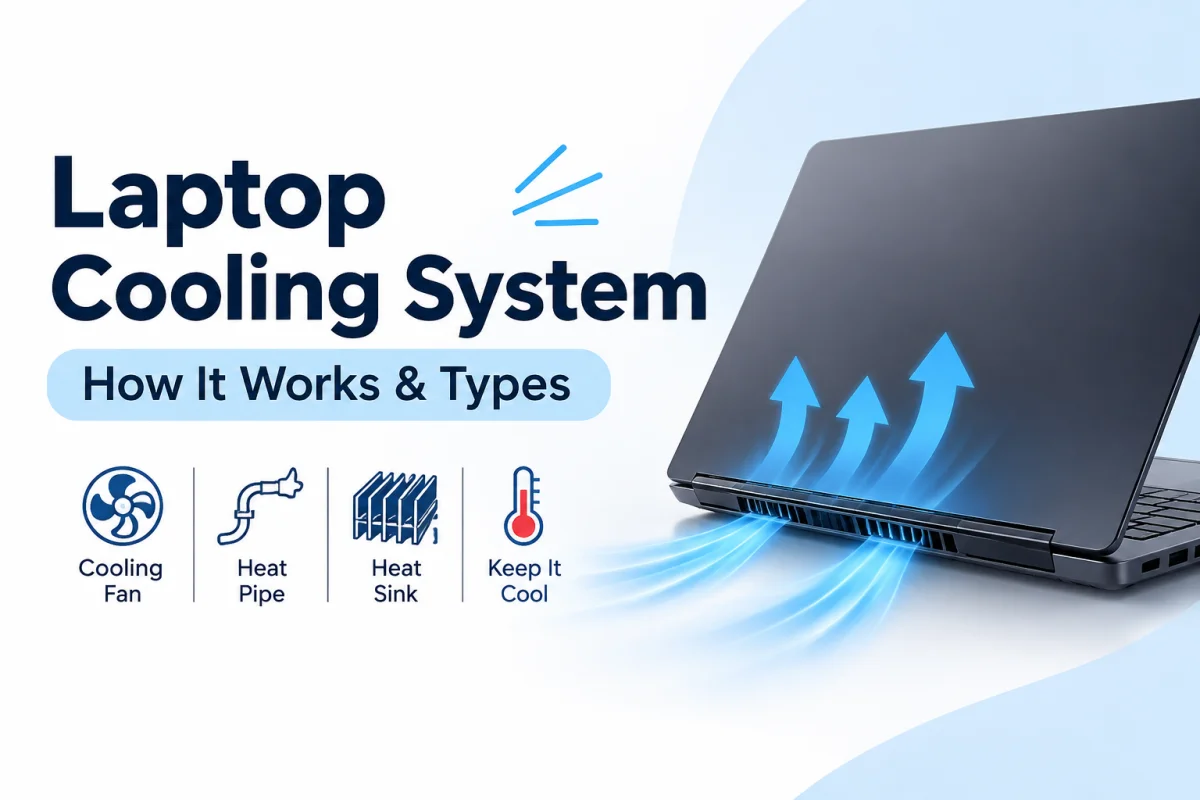
A laptop cooling system plays an important role in maintaining performance, controlling internal temperatures, and protecting hardware from excessive heat. Whether you use a laptop for everyday browsing, office work, programming, gaming, or video editing, its cooling system helps keep the internal components operating within their designed temperature limits.
Unlike desktop computers, laptops have limited internal space, making heat management more challenging. Manufacturers use different cooling technologies, including cooling fans, heat pipes, heat sinks, vapor chambers, and thermal materials to manage heat generated by the processor and graphics chip.
Understanding how a laptop cooling system works can help you identify overheating problems, maintain your device, and make better decisions when purchasing a new or used laptop in Bangladesh.
In this guide, you will learn about laptop cooling system components, different cooling technologies, common overheating causes, maintenance methods, and practical ways to improve laptop cooling performance.
What Is a Laptop Cooling System?
A laptop cooling system is a combination of hardware components designed to manage and remove heat generated by internal components such as the CPU (Central Processing Unit), GPU (Graphics Processing Unit), and other electronic circuits.
When a laptop performs tasks, its processor and graphics chip consume electrical power and generate heat. If this heat is not managed properly, internal temperatures can increase and affect system performance.
A cooling system transfers heat away from important components and releases it into the surrounding air. Depending on the laptop model, this process may involve cooling fans, heat sinks, heat pipes, vapor chambers, or passive cooling designs.
The main purposes of a laptop cooling system include:
Controlling CPU and GPU temperatures.
Preventing excessive heat buildup.
Maintaining consistent system performance.
Reducing thermal throttling.
Supporting hardware reliability.
Helping the laptop operate safely under different workloads.
Most modern performance laptops use active cooling systems, while some thin and lightweight laptops use passive or hybrid cooling designs.
How Does a Laptop Cooling System Work?
A laptop cooling system works by transferring heat away from internal components and releasing it through dedicated ventilation areas.
Although the exact design varies between manufacturers and models, most conventional fan-cooled laptops follow a similar cooling process.
1. CPU and GPU Generate Heat
The CPU and GPU generate heat while performing calculations and processing data.
For example, running multiple applications, editing videos, playing games, or performing demanding software operations can increase processor activity and power consumption.
As workload increases, these components generally produce more heat.
2. Thermal Paste Transfers Heat
Thermal paste is applied between a processor or graphics chip and its cooling plate.
The surfaces of these components contain microscopic imperfections. Thermal paste fills small gaps between the surfaces and improves thermal contact.
This allows heat to transfer more effectively from the chip to the cooling assembly.
Some laptops also use thermal pads or other thermal interface materials for specific components.
3. Heat Pipes or Vapor Chambers Move Heat
After heat reaches the cooling assembly, heat pipes or vapor chambers help distribute it toward the heat sink.
Heat pipes contain a small amount of working fluid inside a sealed tube. The fluid evaporates near the heat source, travels toward a cooler area, releases heat, and condenses. A wick structure helps return the liquid toward the heated section.
Vapor chambers use a similar phase-change principle but distribute heat across a broader, relatively flat surface.
Not every laptop uses both technologies. Some models use heat pipes, while others use vapor chambers or different thermal solutions.
4. Heat Sink Dissipates Heat
A heat sink is usually made of metal and contains multiple thin fins that increase its surface area.
As heat travels through the cooling assembly, the heat sink absorbs and spreads it across these fins.
The larger surface area helps transfer heat into the surrounding airflow.
5. Cooling Fan Removes Hot Air
In fan-cooled laptops, cooling fans move air through the internal cooling assembly.
Cooler air enters through designated intake openings, passes through or around the heat sink, and carries heat toward the exhaust vents.
The heated air then leaves the laptop through the ventilation openings.
This continuous process helps maintain controlled operating temperatures.
Main Components of a Laptop Cooling System
A laptop cooling system contains several important components. Each component performs a different function in managing internal heat.
1. Laptop Cooling Fan
The cooling fan is one of the most recognizable parts of a laptop cooling system.
It creates airflow inside the laptop and helps remove heat from the heat sink.
Many laptops use one or more small cooling fans, depending on their internal design and performance requirements.
The fan speed is generally controlled automatically based on temperature readings, system workload, and manufacturer-specific fan control settings.
Main functions:
Creating airflow inside the laptop.
Removing hot air through exhaust vents.
Supporting heat dissipation.
Helping control internal temperatures.
A damaged, blocked, or malfunctioning fan can reduce cooling performance.
2. Heat Sink
A heat sink is a metal component designed to absorb and dissipate heat from processors and other heat-generating components.
It usually contains multiple thin metal fins that increase the surface area available for heat transfer.
In many laptops, the heat sink works together with heat pipes and cooling fans.
Main functions:
Absorbing heat from the cooling assembly.
Spreading heat across metal fins.
Increasing heat dissipation.
Supporting consistent thermal performance.
3. Heat Pipes
Heat pipes are sealed tubes commonly made from copper.
They contain a working fluid that transfers heat through evaporation and condensation.
When one section of a heat pipe becomes hot, the internal fluid evaporates and moves toward a cooler section. It releases heat there and condenses back into liquid.
A wick structure helps return the liquid to the hot section.
Heat pipes are widely used in laptops because they can transfer heat efficiently within limited internal space.
4. Vapor Chamber
A vapor chamber is a flat heat-spreading component that uses phase-change technology to distribute heat across a larger surface.
It can help manage heat from powerful processors and graphics chips, particularly in some high-performance laptops.
Unlike a conventional heat pipe, which primarily transfers heat along a tube, a vapor chamber spreads heat across a broader area.
However, vapor chambers are not included in every laptop. Their use depends on the manufacturer's cooling design.
5. Thermal Paste and Thermal Pads
Thermal paste and thermal pads are thermal interface materials used to improve heat transfer between electronic components and cooling surfaces.
Thermal Paste:
Thermal paste fills microscopic gaps between a processor and its cooling plate, reducing thermal contact resistance.
Thermal Pads:
Thermal pads are generally used where a gap needs to be filled between a component and a heat spreader or cooling assembly.
These materials are commonly used for components such as memory chips and voltage regulation components, depending on the laptop design.
Incorrect application, deterioration, or unsuitable replacement materials can negatively affect cooling performance.
6. Air Intake and Exhaust Vents
Air intake and exhaust vents are important parts of a laptop's airflow system.
Air intake vents: Allow cooler surrounding air to enter the laptop.
Exhaust vents: Allow heated air to leave the laptop.
These openings are usually positioned on the bottom, sides, or rear of the laptop.
Blocked vents can restrict airflow and contribute to overheating.
Types of Laptop Cooling Systems
Laptop manufacturers use different cooling technologies depending on device size, performance requirements, power consumption, and internal design.
The main types include active cooling, passive cooling, and hybrid cooling.
1. Active Cooling System
An active cooling system uses mechanical components, usually fans, to create airflow and remove heat.
It is commonly found in business laptops, gaming laptops, workstation laptops, and many mainstream notebook computers.
Advantages:
Provides active airflow.
Helps manage heat during demanding workloads.
Supports higher-performance processors.
Can adjust fan speed according to temperature.
Disadvantages:
Produces some fan noise.
Requires occasional dust cleaning.
Contains moving parts that can wear out.
2. Passive Cooling System
A passive cooling system manages heat without using a mechanical cooling fan.
It generally relies on heat spreaders, metal surfaces, chassis design, and natural convection to release heat into the surrounding environment.
Passive cooling is commonly used in certain fanless laptops and low-power computing devices.
Advantages:
Silent operation.
No cooling fan maintenance.
No fan-related mechanical wear.
Disadvantages:
Limited heat dissipation capacity.
May require lower-power hardware.
Can be less suitable for sustained demanding workloads.
3. Hybrid Cooling System
A hybrid cooling system combines passive heat management with active cooling.
For example, a laptop may use heat spreaders and heat pipes to distribute heat while cooling fans provide additional airflow when temperatures increase.
Some laptops also use fan-control profiles that reduce fan activity during light workloads and increase cooling when necessary.
This approach can balance noise, temperature, and performance.
4. Liquid Cooling System in Laptops
Liquid cooling is less common in conventional laptops than air-based cooling.
Some specialized high-performance laptop designs use liquid-assisted cooling systems or external liquid cooling accessories.
These solutions can help transfer heat away from powerful processors and graphics hardware.
However, most standard laptops do not use a conventional desktop-style liquid cooling loop.
Why Is a Laptop Cooling System Important?
A properly functioning cooling system is essential for maintaining a laptop's performance and reliability.
Here are some important reasons why laptop cooling matters.
1. Prevents Excessive Heat Buildup
The cooling system removes heat generated by internal components and helps prevent temperatures from rising beyond their intended operating ranges.
2. Helps Maintain Performance
Modern processors use thermal and power management technologies to adjust their operating behavior according to temperature and power limits.
When temperatures become too high, the processor may reduce its clock speed to control heat.
A properly functioning cooling system helps reduce unnecessary thermal limitations.
3. Reduces Thermal Throttling
Thermal throttling occurs when a processor or graphics chip reduces its performance to control temperature.
It may result in slower application performance, reduced gaming frame rates, or longer rendering times.
Effective cooling helps manage temperatures and maintain more consistent performance.
4. Supports Hardware Reliability
Excessive heat can place additional stress on electronic components over time.
Proper thermal management helps keep components within their designed operating conditions and supports long-term hardware reliability.
5. Improves User Experience
A well-maintained cooling system can help reduce unnecessary fan noise, unexpected performance drops, and overheating-related interruptions.
Common Signs of Laptop Overheating
Recognizing overheating symptoms early can help prevent further problems.
Here are some common warning signs:
1. Laptop Becomes Unusually Hot
If the laptop's keyboard area, bottom panel, or exhaust area becomes unusually hot, the cooling system may be struggling to manage heat.
However, some warmth is normal, especially during demanding tasks.
2. Cooling Fan Makes Excessive Noise
A fan that frequently runs at high speed may indicate increased thermal demand, restricted airflow, dust buildup, or another cooling-related issue.
Grinding, rattling, or unusual mechanical sounds may indicate fan damage.
3. Laptop Performance Becomes Slow
If the laptop becomes noticeably slower during demanding workloads, thermal throttling may be one possible cause.
Other issues, including background applications, insufficient memory, or software problems, can also affect performance.
4. Unexpected Shutdowns
A laptop may shut down automatically when internal temperatures or other operating conditions reach protective limits.
Repeated unexpected shutdowns should be investigated rather than ignored.
5. Poor Gaming or Video Editing Performance
If performance decreases during extended gaming, video editing, or rendering sessions, excessive heat or power limitations may be contributing factors.
What Causes Laptop Overheating?
Laptop overheating can happen for several reasons. Some are related to maintenance, while others involve hardware, software, or environmental conditions.
1. Dust Buildup Inside Cooling Fans
Dust and debris can accumulate around cooling fans, heat sink fins, and ventilation openings.
This buildup can restrict airflow and reduce cooling efficiency.
Regular inspection and appropriate cleaning can help maintain proper ventilation.
2. Blocked Air Vents
Using a laptop on a bed, pillow, blanket, or other soft surface can block ventilation openings.
Restricted airflow makes it harder for the cooling system to remove heat.
Always use a suitable hard, flat surface unless the laptop is specifically designed for another type of placement.
3. Deteriorated or Improperly Applied Thermal Paste
Thermal paste helps transfer heat between processors and cooling plates.
If the thermal interface is damaged, improperly applied, or unsuitable, heat transfer may become less effective.
However, thermal paste should not be replaced unnecessarily. Its condition and the laptop's actual thermal performance should be evaluated first.
4. Heavy CPU and GPU Workloads
Demanding applications can generate significant heat.
Examples include:
Modern video games.
4K video editing.
3D rendering.
Engineering and simulation software.
Large software compilation tasks.
High temperatures during heavy workloads are not automatically a sign of a faulty cooling system.
5. Cooling Fan Malfunction
A damaged fan, loose connection, worn bearing, or control issue can reduce airflow.
If a fan stops working or produces unusual sounds, professional inspection may be necessary.
6. High Environmental Temperature
The surrounding environment affects how effectively a laptop can release heat.
In Bangladesh, laptops may be used in warm rooms, humid conditions, or dusty environments. These conditions can make proper ventilation and regular maintenance particularly important.
How to Improve Laptop Cooling and Prevent Overheating
You can follow several practical methods to improve airflow and maintain your laptop's cooling performance.
1. Use Your Laptop on a Hard, Flat Surface
Place your laptop on a desk or another stable, hard surface.
Avoid using it directly on beds, blankets, pillows, or cushions because these surfaces may block the air intake vents.
2. Keep Air Vents Clean
Check the laptop's ventilation openings regularly.
Remove visible dust using appropriate cleaning methods. Avoid inserting sharp objects into the vents.
For internal cleaning, follow the manufacturer's service instructions or consult a qualified technician.
3. Clean the Internal Cooling Fan
Dust inside the cooling fan and heat sink can restrict airflow.
If the laptop requires internal cleaning, have the fan and heat sink inspected and cleaned properly.
Laptop disassembly methods vary between models, so avoid opening the device without the necessary knowledge and tools.
4. Close Unnecessary Background Applications
Multiple applications running simultaneously can increase CPU and memory usage.
Use Task Manager on Windows to identify applications consuming excessive system resources.
Close unnecessary programs when they are not needed.
5. Use Appropriate Power Settings
Windows provides different power modes that can influence system performance and power consumption.
For everyday tasks, an appropriate balanced or efficiency-focused setting may help reduce unnecessary power usage.
For demanding workloads, the laptop may need a higher-performance setting and more effective cooling.
6. Consider Using a Laptop Cooling Pad
A laptop cooling pad is an external accessory that usually contains one or more fans.
It sits underneath the laptop and provides additional airflow around its bottom surface.
A cooling pad may help reduce temperatures on certain laptop designs, particularly when the laptop's air intake benefits from additional airflow.
However, results vary by laptop model, cooling pad design, and ventilation placement.
7. Check for Cooling Fan Problems
If your laptop becomes unusually hot or produces abnormal fan noise, inspect the cooling system.
A technician can check fan operation, ventilation, heat sink condition, and thermal interface materials.
8. Get Professional Servicing When Necessary
If the laptop continues overheating after basic maintenance, professional servicing may be required.
A technician can inspect internal components and determine whether cleaning, fan replacement, thermal interface servicing, or another repair is necessary.
Laptop Cooling Pad vs Built-in Cooling System
A built-in cooling system and an external laptop cooling pad serve related but different purposes.
The built-in cooling system is part of the laptop's internal thermal design, while a cooling pad provides additional external airflow.
Does a Laptop Cooling Pad Really Work?
Yes, a laptop cooling pad can help improve cooling in some situations, but its effectiveness depends on the laptop's ventilation design.
For example, a laptop with bottom-mounted air intake vents may benefit from additional airflow.
However, a cooling pad cannot repair a damaged fan, remove internal dust buildup, or fix an improperly functioning heat sink.
It should be considered an additional cooling accessory rather than a replacement for the built-in cooling system.
How to Choose a Laptop with a Good Cooling System
When purchasing a laptop, checking its processor and RAM is not enough. You should also consider its cooling design, particularly if you plan to use demanding applications.
Here are some important factors to consider.
1. Check the Cooling Fan Design
Look at the number, size, and placement of cooling fans.
Some laptops use a single-fan design, while performance-oriented models may include dual fans.
More fans do not automatically guarantee better cooling. The overall thermal design matters more.
2. Check Heat Pipe and Vapor Chamber Design
Heat pipes and vapor chambers help transfer and distribute heat.
Their design, size, placement, and contact with heat-generating components can influence thermal performance.
3. Consider Air Intake and Exhaust Placement
Check where the laptop draws in cool air and releases hot air.
Properly designed ventilation helps maintain effective airflow.
4. Consider Processor and Graphics Power
Powerful processors and dedicated graphics chips can generate more heat under demanding workloads.
A laptop's cooling system should be suitable for its hardware and intended usage.
5. Check Real-World Thermal Performance
Before purchasing a laptop, look for reliable reviews that test temperature, fan noise, and performance under sustained workloads.
A laptop that performs well during short benchmarks may behave differently during extended gaming, rendering, or professional workloads.
Laptop Cooling System Maintenance Tips for Bangladesh
Laptop users in Bangladesh should pay attention to cooling maintenance because dust, warm indoor environments, and everyday usage conditions can affect ventilation.
Here are some practical maintenance tips.
1. Avoid Dusty Environments
Try to keep your laptop away from excessive dust.
Dust accumulation around ventilation openings can gradually restrict airflow.
2. Avoid Using Laptops on Soft Surfaces
Always use a suitable flat surface to prevent accidental blockage of air intake vents.
This is particularly important during long working or gaming sessions.
3. Inspect the Cooling Fan Regularly
Pay attention to unusual fan noise, inconsistent airflow, and unexpected temperature increases.
These signs may indicate that the cooling system needs inspection.
4. Clean the Cooling System When Necessary
Internal cleaning should be based on the laptop's condition and usage environment rather than an arbitrary fixed schedule.
A qualified technician can inspect the fan and heat sink and determine whether cleaning is needed.
5. Check Cooling Performance Before Buying a Used Laptop
If you are purchasing a used HP laptop in Bangladesh, inspect its cooling performance before making a decision.
Check the following:
Whether the cooling fan operates properly.
Whether the exhaust vents release airflow.
Whether the laptop makes unusual fan noises.
Whether it overheats during normal usage.
Whether performance drops during demanding tasks.
Whether the laptop shuts down unexpectedly.
A proper inspection can help you identify potential cooling problems before purchasing a second-hand laptop.
Frequently Asked Questions About Laptop Cooling Systems
1. What is the main purpose of a laptop cooling system?
The main purpose of a laptop cooling system is to manage and remove heat generated by internal components such as the CPU and GPU. It helps maintain appropriate operating temperatures and supports consistent system performance.
2. How does a laptop cooling fan work?
A laptop cooling fan creates airflow inside the laptop. It helps move air through the heat sink and removes heated air through exhaust vents, reducing internal heat buildup.
3. Is it normal for a laptop to get hot?
Yes. Laptops naturally generate heat during operation, particularly when running demanding applications. However, unusually high temperatures, repeated shutdowns, or significant performance drops may indicate a cooling problem.
4. How often should I clean my laptop cooling fan?
There is no universal cleaning schedule for every laptop. Cleaning frequency depends on the usage environment, dust accumulation, and laptop design. Inspect the ventilation system periodically and clean it when necessary.
5. Does a laptop cooling pad really work?
A laptop cooling pad can improve external airflow and may help reduce temperatures on compatible laptop designs. However, its effectiveness varies depending on the laptop's air intake placement and the cooling pad's design.
6. Can overheating damage a laptop?
Repeated excessive heat can place additional stress on internal electronic components. Modern laptops include thermal protection mechanisms, but persistent overheating should still be investigated and addressed.
7. Why does my laptop fan run constantly?
A laptop fan may run continuously because of high CPU or GPU usage, background applications, warm environmental conditions, restricted airflow, or manufacturer-specific fan settings. Dust buildup or hardware problems may also contribute.
8. Can I use a laptop without a cooling fan?
Some laptops are specifically designed with passive cooling and operate without mechanical fans. However, a laptop designed for active cooling should not be operated with a damaged or non-functional fan without proper inspection and repair.
9. What is the difference between a heat pipe and a heat sink?
A heat pipe transfers heat from a hotter area to a cooler area using a sealed working-fluid system. A heat sink spreads and dissipates heat through its metal surface and fins.
10. Why does my laptop overheat while gaming?
Gaming places a heavy workload on the CPU and GPU, which increases heat generation. Restricted airflow, dust buildup, unsuitable power settings, or insufficient cooling capacity can make the problem worse.
Conclusion
A laptop cooling system is essential for maintaining stable performance, managing internal temperatures, and supporting hardware reliability. Components such as cooling fans, heat sinks, heat pipes, vapor chambers, and thermal interface materials work together to control heat generated during everyday and demanding tasks.
Understanding how these components work can help you recognize overheating symptoms, maintain proper airflow, and make better laptop purchasing decisions.
Whether you use an HP laptop for studying, office work, freelancing, programming, or gaming, proper cooling system maintenance is important. Keep the ventilation openings clean, use your laptop on a suitable surface, and seek professional servicing when necessary.
A properly maintained laptop cooling system helps your device perform more consistently and remain reliable over time.